


Your Guide to Understanding the Google PageSpeed Insights Report
How Can You Read a Google PageSpeed Insights Report and Turn It into a Plan to Improve Your Website’s Performance?
Knowing that your website is “fast” or “slow” is not enough. You need to understand why it received that result and what should be improved first. This is where Google PageSpeed Insights (PSI) comes in. It helps website owners and developers measure performance, understand the user experience, and make practical decisions to improve their websites.
Below are the most important points to understand when reading a PageSpeed Insights report.
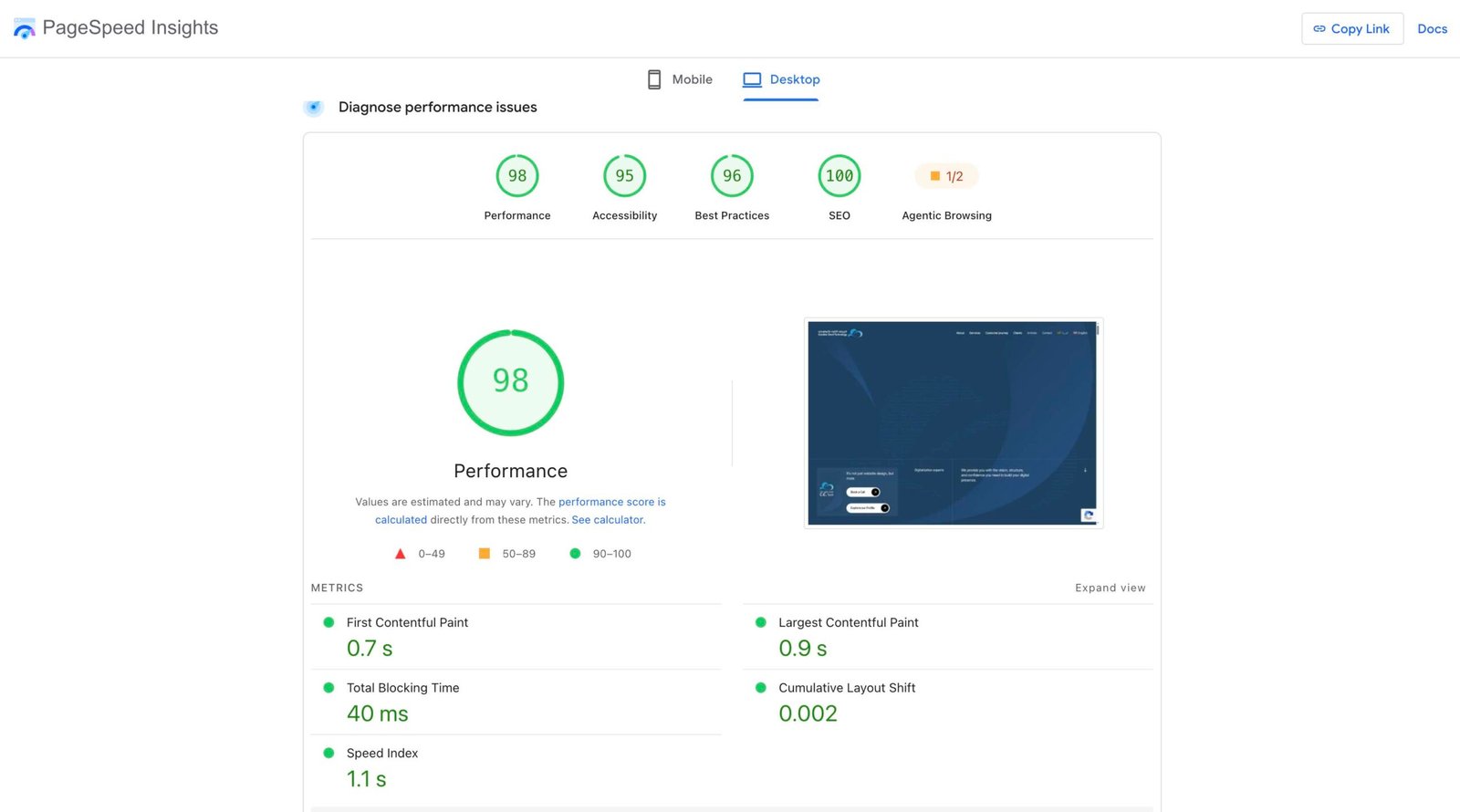
First: Distinguish Between Field Data and Lab Data
PageSpeed Insights displays two main types of data, and each serves a different purpose.
1. Field Data
Field Data is based on real visits made by actual users to the website during the last 28 days. Therefore, it reflects users’ experiences under different conditions, including variations in devices, internet speeds, and geographic locations.
This data is primarily used to evaluate the Core Web Vitals. If the report displays the phrase “No Data,” it usually means that the website did not receive enough visits during the required period to generate a reliable field report.
2. Lab Data
Lab Data usually appears under the “Diagnose performance issues” section. It is generated through a simulation conducted by Lighthouse, using specific device specifications, a particular geographic location, and a defined connection speed.
For this reason, the PageSpeed Insights result may differ from the result of a test performed in your own browser. PSI may run the test from servers in a different geographic region, while you may conduct your test from another country and with a different internet speed. This difference particularly affects metrics such as Total Blocking Time.
Second: Use Google Search Console When Sufficient Data Is Not Available
If PageSpeed Insights does not display enough field data, go to Google Search Console and open the Core Web Vitalssection. This section provides a broader report on URLs experiencing performance issues and classifies them into three categories:
- Poor
- Needs Improvement
- Good
In this way, you do not limit your analysis to a single page. Instead, you identify the pages affected by the issue and address them according to priority.
Third: Understand the Difference Between “This URL” and “Origin”
The report provides two important options for comparing performance:
- This URL: Displays data for the specific page being tested, such as the homepage.
- Origin: Displays the average performance of the entire website across its domain and all of its pages.
The homepage may appear to perform well, while the website’s overall average may indicate poor performance. For example, the homepage may achieve an LCP of 2.1 seconds, while the website average reaches 3.6 seconds. This difference indicates that other pages require urgent improvement.
Fourth: Learn About the Most Important Performance Metrics
FCP — First Contentful Paint
FCP measures the time the browser needs to display the first visible element on the page, such as text, a button, or an image.
The report classifies the result as follows:
- From 0 to 1.8 seconds: Good
- More than 1.8 seconds and up to 3 seconds: Needs Improvement
- More than 3 seconds: Poor
The sooner the first content appears, the sooner users feel that the page has started responding.
LCP — Largest Contentful Paint
LCP measures the time required to display the largest visible element in the above-the-fold area of the page, such as a hero image, a large heading, or a prominent block of text.
The performance levels are as follows:
- From 0 to 2.5 seconds: Good
- More than 2.5 seconds and up to 4 seconds: Needs Improvement
- More than 4 seconds: Poor
This metric indicates how quickly the main content that users are waiting for appears.
CLS — Cumulative Layout Shift
CLS measures how stable the page layout remains while the page is loading. If a button moves, text jumps, or an advertisement appears and pushes other elements downward, users may experience confusion and could click on an unintended element.
The values are classified as follows:
- From 0 to 0.1: Good
- More than 0.1 and up to 0.25: Needs Improvement
- More than 0.25: Poor
Therefore, you should reserve space for images, advertisements, and dynamic elements before they load.
TBT — Total Blocking Time
TBT measures the total amount of time during which the browser prevents users from interacting with the page because it is busy executing files, particularly JavaScript files.
When this metric is high, clicking, typing, and opening menus become delayed. As a result, TBT is directly related to the website’s responsiveness.
SI — Speed Index
Speed Index measures how quickly the page’s content becomes visually visible until the overall view is complete. The faster different parts of the page appear in sequence, the better the Speed Index becomes.
Fifth: Pay Attention to Google’s Transition from FID to INP
Starting in March 2024, Google adopted INP — Interaction to Next Paint instead of FID — First Input Delay as one of the user experience metrics.
FID focused only on the browser’s response time to the first interaction. INP, however, measures the response time for different user interactions throughout the user’s visit to the page, such as clicking a dropdown menu, a button, or a form.
Therefore, INP provides a more accurate picture of the website’s actual responsiveness because it does not evaluate only one interaction; it assesses multiple interactions.
Sixth: How Is the Overall Lighthouse Score Calculated?
The overall score, such as 29 out of 100, does not represent a single metric. Instead, it combines several metrics according to different weights in Lighthouse 10:
- TBT: 30%
- LCP: 25%
- CLS: 25%
- FCP: 10%
- Speed Index: 10%
This shows that TBT has the greatest weight. Therefore, reducing JavaScript execution time and the files that block interaction may significantly improve the final score.
Seventh: Turn the Report into Practical Steps
After reviewing the results, open the Diagnostics section at the bottom of the report. This section provides practical recommendations related to the detected issues, such as:
- Reducing unused CSS files.
- Optimizing JavaScript files.
- Reducing resources that block page rendering.
- Optimizing images and large resources.
- Addressing the causes of layout shifts during loading.
Do not focus on the overall score alone. Start with the issues that affect the user experience and the Core Web Vitals, then run the test again after completing each group of improvements.
Eighth: Run Lighthouse in Incognito Mode
When performing a manual test in your browser, use Incognito Mode. This helps reduce the impact of browser extensions, which may change the measurement results or consume additional resources during the test.
Conclusion
Google PageSpeed Insights provides more than a numerical score. It explains how users experience your website, where the browsing experience breaks down, and at Creative Cloud Technology C.C.Tech we fully understand the steps that can be taken to improve it. We begin by distinguishing between field data and lab data, then compare the specific page with the domain average. We also carefully review the FCP, LCP, CLS, TBT, and SI metrics, while recognizing INP as an important interaction metric.
Finally, using Google Search Console and reviewing the Diagnostics section enables us to turn measurement results into a clear action plan. Good performance is not achieved merely by chasing a perfect score; it is achieved by building a fast, stable, and user-friendly experience.